Live Keyboard Shortcuts
Keyboard shortcuts are available for many common actions and commands in Live.
Showing and Hiding Views
Windows
Mac
Toggle Full Screen Mode
F11
Ctrl
Cmd
F
Toggle Second Window
Ctrl
Shift
W
Cmd
Shift
W
Toggle Session/Arrangement View
Tab
Tab
Toggle Between Device/Clip View
Shift
Tab or
F12
Shift
Tab or
F12
Toggle Device and Clip View
Alt click view toggle
Option click view toggle
Toggle Hot-Swap Mode
Q
Q
Toggle Drum Rack/Last Selected Pad
D
D
Hide/Show Info View
Shift
?
Shift
?
Hide/Show Video Window
Ctrl
Alt
V
Cmd
Option
V
Hide/Show Browser
Ctrl
Alt
B or
Ctrl
Alt
5
Cmd
Option
B or
Cmd
Option
5
Hide/Show Overview
Ctrl
Alt
O
Cmd
Option
O
Hide/Show In/Out
Ctrl
Alt
I
Cmd
Option
I
Hide/Show Sends
Ctrl
Alt
S
Cmd
Option
S
Hide/Show Mixer
Ctrl
Alt
M
Cmd
Option
M
Hide/Show Clip View
Ctrl
Alt
3
Cmd
Option
3
Hide/Show Device View
Ctrl
Alt
4
Cmd
Option
4
Hide/Show the Groove Pool
Ctrl
Alt
6
Cmd
Option
6
Open the Settings
Ctrl
,
Cmd
,
Close Window/Dialog
Esc
Esc
Keyboard Focus and Navigation
Windows
Mac
Move Focus to the Control Bar
Alt
0
Option
0
Move Focus to the Session View
Alt
1
Option
1
Move Focus to the Arrangement View
Alt
2
Option
2
Move Focus to the Clip View
Alt
3
Option
3
Move Focus to the Device View
Alt
4
Option
4
Move Focus to the Browser
Alt
5
Option
5
Move Focus to the Groove Pool
Alt
6
Option
6
Move Focus to the Help View
Alt
7
Option
7
Move Focus to the Selected Clip Panel
Alt
8
Option
8
Move Focus to the Clip Panels
Alt
Shift
P
Option
Shift
P
The following shortcuts are available when the Use Tab to Move Focus command is enabled via Live's Settings or the Navigate menu.
Windows
Mac
Move to Next Focusable Control
Tab
Tab
Move to Previous Focusable Control
Shift
Tab
Shift
Tab
Move to Next Neighbor of Current Control
Ctrl
Tab
Option
Tab
Move to Previous Neighbor of Current Control
Ctrl
Shift
Tab
Option
Shift
Tab
Working with Sets and the Program
Windows
Mac
New Live Set
Ctrl
N
Cmd
N
Open Live Set
Ctrl
O
Cmd
O
Save Live Set
Ctrl
S
Cmd
S
Save Live Set As.
Ctrl
Shift
S
Cmd
Shift
S
Quit Live
Ctrl
Q
Cmd
Q
Hide Live
Cmd
H
Export Audio/Video
Ctrl
Shift
R
Cmd
Shift
R
Export MIDI File
Ctrl
Shift
E
Cmd
Shift
E
Working with Devices and Plug-Ins
Windows
Mac
Group Devices
Ctrl
G
Cmd
G
Ungroup Devices
Ctrl
Shift
G
Cmd
Shift
G
Activate/Deactivate All Devices in Group
Hold
Alt and click on device activator
Hold
Option and click on device activator
Add Device(s) to Selection
Shift click
Shift click
See List of Devices on a Track
right-click on Device View selector
right-click on Device View selector
Reset Parameter Value
Delete or double-click
Delete or double-click
Load Selected Device from Browser
Enter
Enter
Hot-Swap Selected Device
Q
Q
Show/Hide Plug-In Window
Ctrl
Alt
P
Cmd
Option
P
Open Multiple Windows with Show/Hide Plug-In Window Button
Ctrl
Cmd
Editing
Windows
Mac
Cut
Ctrl
X
Cmd
X
Copy
Ctrl
C
Cmd
C
Paste
Ctrl
V
Cmd
V
Duplicate
Ctrl
D
Cmd
D
Delete
Delete
Delete
Undo
Ctrl
Z
Cmd
Z
Redo
Ctrl
Y
Cmd
Shift
Z
Rename
Ctrl
R
Cmd
R
Select All
Ctrl
A
Cmd
A
Select Multiple Items
Ctrl click
Cmd click
Select Multiple Items by First and Last Item
Shift click
Shift click
Move to Next Track/Scene When Renaming
Tab
Tab
Ignore Grid Quantization When Dragging
Alt
Cmd
Some of the above editing shortcuts can also be applied to the following items by using the listed modifier key:
Windows
Mac
Clips and Slots Across All Tracks
Shift
Shift
Time Across All Tracks
Shift
Shift
The Selected Part of the Envelope
Alt
Option
Adjusting Values
Windows
Mac
Decrement/Increment
up and down arrow keys
up and down arrow keys
Decrement/Increment in Octaves or Fine Adjustments
Shift up and down arrow keys
Shift up and down arrow keys
Finer Resolution When Dragging
Shift
Shift
Return to Default
Delete
Delete
Type In Value
0 .
9
0 .
9
Go to Next Field (Bar/Beat/16th)
.
,
.
,
Cancel Value Entry
Esc
Esc
Confirm Value Entry
Enter
Enter
Commands for Breakpoint Envelopes
Windows
Mac
Toggle Automation Mode
A
A
Finer Resolution When Dragging
Shift
Shift
Create Curved Automation Segment
Alt
Option
Momentarily Toggle Fade Controls
F
F
Delete Selected Breakpoint Envelope
Ctrl
Delete
Cmd
Delete
Ignore Grid Quantization When Dragging
Alt
Cmd
Loop Brace and Start/End Markers
Windows
Mac
Set Start Marker
Ctrl
F9
Cmd
F9
Set Loop Brace Start
Ctrl
F10
Cmd
F10
Set Loop Brace End
Ctrl
F11
Cmd
F11
Set End Marker
Ctrl
F12
Cmd
F12
The loop brace or start/end markers must first be selected before any of the following shortcuts can be applied.
Windows
Mac
Move Start Marker to Position
Ctrl click
Cmd click
Move End Marker to Position
Ctrl
Shift click
Cmd
Shift click
Nudge Loop Brace Left/Right
right and left arrow keys
right and left arrow keys
Move Loop by Loop Length
up and down arrow keys
up and down arrow keys
Halve/Double Loop Length
Ctrl up and down arrow keys
Cmd up and down arrow keys
Shorten/Lengthen Loop
Ctrl right and left arrow keys
Cmd right and left arrow keys
Select Material in Loop
Ctrl
Shift
L
Cmd
Shift
L
Zooming, Display and Selections
Windows
Mac
Zoom In Window
Ctrl
+
Cmd
+
Zoom Out Window
Ctrl
-
Cmd
-
Zoom In Time Ruler
+
+
Zoom Out Time Ruler
-
-
Scroll Display to Follow Playback
Ctrl
Shift
F
Option
Shift
F
Scroll Left/Right
Shift scroll
Shift scroll
Pan Left/Right of Selection
Ctrl
Alt
Cmd
Option
Add Items to a Selection
Shift click or drag
Shift click or drag
Add Adjacent Clips/Tracks/Scenes to Multi-Selection
Shift click
Shift click
Add Nonadjacent Clips/Tracks/Scenes to a Multi-Selection
Ctrl click
Cmd click
Clip View Editor View Modes
Windows
Mac
Switch Between Sample/Envelopes Tabs
Ctrl
Tab
Option
Tab
Switch Between Notes/Envelopes/MPE Tabs
Ctrl
Tab
Option
Tab
Switch to Sample/Notes Tab
Alt
Shift
1
Option
Shift
1
Switch to Envelopes Tab
Alt
Shift
2
Option
Shift
2
Switch to MPE Tab
Alt
Shift
3
Option
Shift
3
Clip View Sample Editor
Windows
Mac
Quantize
Ctrl
U
Cmd
U
Quantize Settings.
Ctrl
Shift
U
Cmd
Shift
U
Move Selected Warp Marker
right and left arrow keys
right and left arrow keys
Select Warp Marker
Ctrl right and left arrow keys
Cmd right and left arrow keys
Scroll Display to Follow Playback
Ctrl
Shift
F
Option
Shift
F
Move Clip Region with Start Marker
Shift right and left arrow keys
Shift right and left arrow keys
Zoom to Clip Selection
Z
Z
Zoom Back from Clip Selection
X
X
Insert Warp Marker
Ctrl
I
Cmd
I
Delete Warp Marker
Delete
Delete
Insert Transient
Ctrl
Shift
I
Cmd
Shift
I
Delete Transient
Ctrl
Shift
Delete
Cmd
Shift
Delete
Fit Content to View Width
W
W
Fit Content to View Height
H
H
Clip View MIDI Note Editor
Windows
Mac
Select All Notes
Ctrl
A
Cmd
A
Copy Notes
Ctrl drag
Option drag
Chop Selected Notes on Grid or Split Notes at Time Selection Start/End
Ctrl
E
Cmd
E
Chop Notes in Increments of 1
Ctrl
E drag up/down
Cmd
E drag up/down
Chop Notes in Increments of 2
Ctrl
Shift
E drag up/down
Cmd
Shift
E drag up/down
Split Notes at Exact Location
Hold
E then click to split, drag to move
Hold
E then click to split, drag to move
Join Notes
Ctrl
J
Cmd
J
Fit Notes to Time Range
Ctrl
Alt
J
Cmd
Option
J
Fit Content to View Width
W
W
Fit Content to View Height
H
H
Quantize
Ctrl
U
Cmd
U
Quantize Settings.
Ctrl
Shift
U
Cmd
Shift
U
Scroll Editor Vertically
Page Up/Down keys
Page Up/Down keys
Scroll Editor Vertically in Fine Increments
Shift Page Up/Down keys
Shift Page Up/Down keys
Scroll Editor Horizontally
Ctrl Page Up/Down keys
Cmd Page Up/Down keys
Change Velocity from MIDI Note Editor
Alt drag
Cmd drag
Move Insert Marker to Beginning
Home
Home or
Function left arrow key
Move Insert Marker to End
End
End or
Function right arrow
Select Next/Previous Note
Alt up and down arrow keys
Option up and down arrow keys
Select Next/Previous Note in Same Key Track
Alt left and right arrow keys
Option left and right arrow keys
Scroll Display to Follow Playback
Ctrl
Shift
F
Option
Shift
F
Move Clip Region with Start Marker
Shift right and left arrow keys
Shift right and left arrow keys
Zoom to Clip Selection
Z
Z
Zoom Back from Clip Selection
X
X
Zoom In/Out Horizontally
+
-
+
-
Set Note Selection Velocity
Type a value between 0-127 and press
Enter
Type a value between 0-127 and press
Enter
Adjust Note Selection Velocity
Ctrl up and down arrow keys
Cmd up and down arrow keys
Adjust Note Selection Velocity Deviation
Ctrl
Shift up and down arrow keys
Cmd
Shift up and down arrow keys
Adjust Note Selection Chance
Ctrl
Alt up and down arrow keys
Cmd
Option up and down arrow keys
Toggle Full-Size Clip View
Ctrl
Alt
E
Cmd
Option
E
Group Notes (Play All)
Ctrl
G
Cmd
G
Ungroup Notes
Ctrl
Shift
G
Cmd
Shift
G
Apply Current MIDI Tool Settings
Ctrl
Enter
Cmd
Enter
Invert Note Selection
Ctrl
Shift
A
Cmd
Shift
A
Highlight Scale
K
K
Split Arrangement Clip Based on Time Selection
Ctrl
Shift
E
Cmd
Shift
E
Show/Hide MIDI Note Filters
Ctrl
Shift
F
Cmd
Shift
F
Grid Snapping and Drawing
Windows
Mac
Toggle Draw Mode (Pitch Lock Off)
B
B
Narrow Grid
Ctrl
1
Cmd
1
Widen Grid
Ctrl
2
Cmd
2
Triplet Grid
Ctrl
3
Cmd
3
Snap to Grid
Ctrl
4
Cmd
4
Fixed/Zoom-Adaptive Grid
Ctrl
5
Cmd
5
Bypass Snapping While Dragging
Alt
Cmd
Global Quantization
Windows
Mac
Sixteenth-Note Quantization
Ctrl
6
Cmd
6
Eighth-Note Quantization
Ctrl
7
Cmd
7
Quarter-Note Quantization
Ctrl
8
Cmd
8
1-Bar Quantization
Ctrl
9
Cmd
9
Quantization Off
Ctrl
0
Cmd
0
Session View
Windows
Mac
Launch Selected Clip/Slot
Enter
Enter
Select Neighboring Clip/Slot
arrow keys
arrow keys
Select All Clips/Slots
Ctrl
A
Cmd
A
Copy Clips
Ctrl drag
Option drag
Add/Remove Stop Button
Ctrl
E
Cmd
E
Stop Clips in Track with Slot Selection
Ctrl
Enter
Cmd
Enter
Insert MIDI clip
Ctrl
Shift
M
Cmd
Shift
M
Insert Scene
Ctrl
I
Cmd
I
Insert Captured Scene
Ctrl
Shift
I
Cmd
Shift
I
Move Up/Down Between Scenes (One at a Time)
up and down arrow keys
up and down arrow keys
Move Up/Down Between Scenes (Eight at a Time)
Page Up/Down keys
Page Up/Down keys
Capture MIDI
Ctrl
Shift
C
Cmd
Shift
C
Record to Session View
Ctrl
Shift
F9
Cmd
Shift
F9
Toggle Follow Actions for Selected Clips
Shift
Enter
Shift
Enter
Create Follow Action Chain
Ctrl
Shift
Enter
Cmd
Shift
Enter
Move Selected Track Left/Right
Ctrl left and right arrow keys
Cmd left and right arrow keys
Move Nonadjacent Scenes Without Collapsing
Ctrl up and down arrow keys
Cmd up and down arrow keys
Drop Browser Clips as a Scene
Ctrl
Cmd
Deactivate Selected Clip
0
0
Jump to Highlighted Track Title Bar
Esc
Esc
Jump to the First Track of the Current Scene
Home
Home or
Function left arrow key
Jump to the Last Track of the Current Scene
End
End or
Function right arrow key
Jump to the Current Scene from the Last Track
End
End or
Function right arrow key
Arrangement View
Windows
Mac
Split Clip at Selection
Ctrl
E
Cmd
E
Consolidate Selection into Clip
Ctrl
J
Cmd
J
Crop Selected Clips
Ctrl
Shift
J
Cmd
Shift
J
Resize Clip When Insert Marker is at Clip Edge
Enter left and right arrow keys
Enter left and right arrow keys
Slide Waveform
Shift
Alt drag
Shift
Option drag
Stretch Warped Clip
Shift drag in clip title bar
Shift drag in clip title bar
Select Time Within Clip
Shift
Alt drag in clip title bar
Shift
Option drag in clip title bar
Create Fade/Crossfade
Ctrl
Alt
F
Cmd
Option
F
Delete Fades/Crossfades in Selected Clip(s)
Ctrl
Alt
Backspace
Cmd
Option
Delete
Momentarily Toggle Fade Handles
F
F
Toggle Loop Brace
Ctrl
L
Cmd
L
Adjust Loop Brace Length
Ctrl left and right arrow keys
Cmd left and right arrow keys
Select Loop Brace Contents
Ctrl
Shift
L
Cmd
Shift
L
Capture MIDI
Ctrl
Shift
C
Cmd
Shift
C
Insert Silence
Ctrl
I
Cmd
I
Cut Time
Ctrl
Shift
X
Cmd
Shift
X
Paste Time
Ctrl
Shift
V
Cmd
Shift
V
Duplicate Time
Ctrl
Shift
D
Cmd
Shift
D
Delete Time
Ctrl
Shift
Delete
Cmd
Shift
Delete
Fold/Unfold Selected Tracks
U or left and right arrow keys
U or left and right arrow keys
Unfold All Tracks
Alt
U
Option
U
Adjust Height of Selected Tracks/Clips
Alt
+ and
Alt
-
Option
+ and
Option
-
Scroll Display to Follow Playback
Ctrl
Shift
F
Option
Shift
F
Scroll Display Left/Right of Selection
Ctrl
Alt drag
Cmd
Option drag
Optimize Arrangement Height
H
H
Optimize Arrangement Width
W
W
Deactivate Selection
0
0
Nudge Selection Left/Right
right and left arrow keys
right and left arrow keys
Reverse Audio Clip Selection
R
R
Zoom to Arrangement Time Selection
Z
Z
Zoom Back from Arrangement Time Selection
X
X
Play from Insert Marker in Selected Clip
Ctrl
Space
Option
Space
Move Insert Marker to Playhead Position
Ctrl
Shift
Space
Cmd
Shift
Space
Jump to Highlighted Track Title Bar
Esc
Esc
Move Focus to Mixer
Alt
Shift
M
Option
Shift
M
Comping
Windows
Mac
Show Take Lanes
Ctrl
Alt
U
Cmd
Option
U
Add Selected Take Lane Area to Main Track Lane
Enter
Enter
Audition Selected Take Lane
T
T
Add Take Lane
Shift
Alt
T
Shift
Option
T
Duplicate Selected Take Lane
Ctrl
D
Cmd
D
Replace Main Take Clip with Next/Previous Take
Ctrl up and down arrow keys
Cmd up and down arrow keys
Commands for Tracks
Windows
Mac
Insert Audio Track
Ctrl
T
Cmd
T
Insert MIDI Track
Ctrl
Shift
T
Cmd
Shift
T
Insert Return Track
Ctrl
Alt
T
Cmd
Option
T
Rename Selected Track
Ctrl
R
Cmd
R
Go to Next Track When Renaming
Tab
Tab
Group Selected Tracks
Ctrl
G
Cmd
G
Ungroup Tracks
Ctrl
Shift
G
Cmd
Shift
G
Show Grouped Tracks
+
+
Hide Grouped Tracks
-
-
Collapse/Expand Grouped Tracks
U
U
Move Nonadjacent Tracks Without Collapsing
Ctrl arrow keys
Cmd arrow keys
Arm Selected Tracks
C
C
Solo Selected Tracks
S
S
Add Device from Browser
Enter
Enter
Deactivate Selected Track
0
0
Freeze/Unfreeze Tracks
Ctrl
Alt
Shift
F
Cmd
Option
Shift
F
Delete Track from Track Title Bar
Delete
Delete
Transport
Windows
Mac
Play from Start Marker/Stop
Space
Space
Continue Play from Stop Point
Shift
Space
Shift
Space
Stop Playback at End of Selection
Ctrl
Space
Option
Space
Play Arrangement View Selection
Space
Space
Move Insert Marker to Beginning
Home
Home or
Function left arrow key
Record
F9
F9
Arm Recording in Arrangement View
Shift
F9
Shift
F9
Record to Session View
Ctrl
Shift
F9
Cmd
Shift
F9
Back to Arrangement
F10
F10
Activate/Deactivate Track 1.8
F1 .
F8
F1 .
F8
Toggle Metronome
O
O
Audio Engine
Windows
Mac
Turn Audio Engine On/Off
Ctrl
Alt
Shift
E
Cmd
Option
Shift
E
Browser
Windows
Mac
Scroll Down/Up
up and down arrow keys
up and down arrow keys
Hide/Show Browser
Ctrl
Alt
B
Cmd
Option
B
Close/Open Folders
right and left arrow keys
right and left arrow keys
Load Selected Item from Browser
Enter
Enter
Preview Selected File
Shift
Enter or right arrow key
Shift
Enter or right arrow key
Search in Browser
Ctrl
F
Cmd
F
Jump to Search Results
down arrow key or
Enter
down arrow key or
Enter
Assign Color(s) to Selected Browser Item(s)
1 .
7
1 .
7
Reset Assigned Color(s) for Selected Browser Item(s)
0
0
Show Similar Files Using Similarity Search
Ctrl
Shift
F
Cmd
Shift
F
Browser History Back
Ctrl
[
Cmd
[
Browser History Forward
Ctrl
]
Cmd
]
Similar Sample Swapping
These shortcuts work for Drum Racks, Drum Rack pads, and Simpler.
Windows
Mac
Swap to Next Similar Sample
Ctrl right arrow
Cmd right arrow
Swap to Previous Similar Sample
Ctrl left arrow
Cmd left arrow
Save as Similarity Reference
Ctrl up arrow
Cmd up arrow
Return to Reference
Ctrl down arrow
Cmd down arrow
Temporarily Toggle Similar Sample Swap Controls in Drum Racks
Alt
Option
Key/MIDI Map Mode and the Computer MIDI Keyboard
Windows
Mac
Toggle MIDI Map Mode
Ctrl
M
Cmd
M
Toggle Key Map Mode
Ctrl
K
Cmd
K
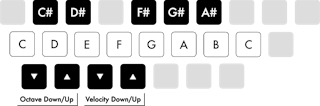
Computer MIDI Keyboard
M
M
Adjust Computer MIDI Keyboard Octave Range Up/Down
X and
Z keys
X and
Z keys
Adjust Computer MIDI Keyboard Incoming Note Velocity Up/Down
C and
V keys
C and
V keys
When the Computer MIDI Keyboard is enabled, you can play notes and adjust the octave and velocity ranges using the following keys:
The Computer MIDI Keyboard Layout.
Single letter shortcuts can still be used when the Computer MIDI Keyboard is active by adding
Shift , e.g.,
Shift
S to solo a track.
Momentary Latching Shortcuts
Some shortcuts can be momentarily latched. This means you can hold down the shortcut key and briefly toggle the shortcut action. After releasing the key, Live's UI will return to its previous state. Momentary latching becomes available after holding down a shortcut key for about 500 ms. The following shortcut keys can be momentarily latched:
A toggles Arrangement automation mode
B toggles Draw Mode
S toggles soloing the selected track
Z toggles zooming into the Arrangement selection
F1 through
F8 toggle the Track Activator switch on and off for the first eight tracks
Tab toggles between Arrangement and Session View
If needed, momentary latching can be turned off using the Options.txt entry: -DisableHotKeyLatching
General Keyboard Navigation and Workflow
You can navigate through most of Live's menus, views and controls using the computer keyboard.
The Navigate menu in Live's menu bar contains commands for moving keyboard focus to different areas of the UI, as well as options for using
Tab to navigate between controls. Additional navigation commands can also be found in the Display & Input Settings.
Using Tab for Navigation
When the Use Tab to Move Focus option is enabled, the
Tab key can be used to navigate in the following ways:
Tab moves to the next control
Shift
Tab moves to the previous control
The
Tab key can also be used to navigate between controls in the Session and Arrangement mixers via these shortcuts:
Ctrl
Tab (Win) /
Option
Tab (Mac) moves to the next control in the same row
Ctrl
Shift
Tab (Win) /
Option
Shift
Tab (Mac) moves to the previous control in the same row
When Use Tab to Move Focus is off, pressing the
Tab key will switch between Session and Arrangement View, as in previous Live versions.
In addition to using
Tab to move focus, the following navigation options are also available:
Wrap Tab Navigation - When this option is enabled, navigating with
Tab will not stop at the last control in a focused view, but will navigate back to the first control. If the first control is selected, using
Shift
Tab will navigate to the last control. This option can be enabled via the Navigate menu or the Display & Input Settings.
Move Clips with Arrow Keys - This option is enabled by default, and lets you use the left and right arrow keys to move selected clips and/or the time selection in Arrangement View. This behavior can be switched off in the Display & Input Settings if needed. When off, pressing the left arrow key collapses the time selection to the start point, while pressing the right arrow key collapses the time selection to the end point.
The
Tab and
Shift
Tab keys can be used to navigate between options inside the Settings tabs. These shortcuts work regardless of whether the Use Tab to Move Focus option is active or not.
When a command is focused in any of the Settings tabs, the up and down arrow keys can be used to change the state of a toggle, make value adjustments, or cycle through the available options for a given command. It is also possible to use the
Enter key to switch between toggle states.
To navigate between the different tabs in the Settings Page Chooser, use
Ctrl
Tab (Win) /
Option
Tab (Mac) and
Ctrl
Shift
Tab (Win) /
Option
Shift
Tab (Mac) or the up and down arrow keys when the chooser is focused. If the keyboard focus is on the first control of any given Settings tab, use the
Shift
Tab shortcut to return the focus to the Settings Page Chooser.
On Windows, you can access each menu by pressing
Alt and the first letter of the menu (
Alt
F for "File," for instance). While a menu is open, you can use:
The up and down arrow keys to navigate the menu items.
The right and left arrow keys to open the neighboring menu.
Enter to choose a menu item.
On Mac, you can access individual menu entries by pressing
Cmd
? . This opens a search field that will suggest menu entries as you type. You can navigate the suggested options by pressing the up and down arrow keys and then press
Enter to choose one.
A context menu is available in different areas of Live for quick access to commonly used menu items and actions. To access the context menu,
right-click (Win) /
Ctrl-click (Mac) on the part of the interface where you would like to execute a particular command. The context menu can also be opened using the shortcut
Menu or
Shift
F10 on Windows or
VO
Shift
M on Mac. It is worth noting that the context menu may sometimes contain applicable options from Live's Settings. You should change these options with care, as they will affect not only the currently selected item but also the general settings of the program.
Some commands only appear in the context menu. Among these are: various options for
working with the browser , special grid marker commands for
directing Auto-Warp , detailed options for
zoom-adaptive and fixed grid line width , copying and pasting for
Operator's envelopes and oscillators , and numerous device-specific commands.