Misc Kenny Notes
As I take more notes from Kenny's videos, I'll seek to categorise them. For now, as I take them, I'll dump them here, and then move them as needed. I intend these notes to be organised by category, rather than strictly by who gives the tutorial. So when they're not by Kenny, I'll indicate.
Creating Pumping Synths in Reaper
Sidechaining to Kick
- Consider we have two tracks, a pad and kick.
- Add a compressor that supports sidechains to the pad track.
- Set detector input on compressor to Aux input
- Set number of channels on pad track to 4, channels 3 and 4 should be routed to compressor's aux inputs.
- Drag IO from kick track to pad track to create send, midi none, audio 1/2→3/4.
- Send should be pre-fader.
Quicker Routing
- Drag IO from kick track to compressor window. This creates a send to an aux track, and routes the new channels to the aux input on the compressor.
Compressor settings:
- Fast release, adjust attack to taste.
- Low threshold generates gating.
Muting Kick
- Disable parent send on Kick track, audio will still be routed to pad compressor. (Muting the kick track will mute the send.)
Trigger Kick
- You can create a separate kick track with no parent send just for sidechaining. This trigger doesn't need to be an actual kick, but can be, say, a hihat or high pitched synth.
Using the Actions Menu as a Favourites Menu
Using the Actions Menu as Favourites video
Recall that you can change almost all of the menus.
Now we can't add menus to Reaper, but can repurpose them.
We can use the Actions menu, which by default is very sparse.
We can use the Main Actions menu.
Since we use ? to open the Actions menu,
we don't need the entry in the Actions menu.
You can retitle menus, such as renaming Actions to Favourites. Remark: In fact, you can clean out and reuse all the menus if you like. The 'include default as submenu) gives you a means to access all of the original menus, so the top level menus need contain only things you use often. You can rename all the menus except the Help menu.
My Remark: Then menus are often pretty packed. There is an option to include the default menu as a submenu at the bottom. So we can pare down the menus to contain only the things we use recently.
Also you can use submenus to organise actions.
You can add labels to sections of the menu.
Example Custom Action: Toggle Touch and Trim/Read
- Track: Select all tracks
- Automation: Toggle track between touch and trim/read
- Track: Unselect (clear selection of) all tracks.
Example Custom Action: Hide and Mute Tracks
- Track: Mute tracks
- Track: Hide tracks in TCP and mixer
- You can unhide using the Track Manager
A final remark I'd add is that it is often better to think of Reaper as something which is intended to be customised to your workflow, rather than used as is. Default menus and bindings are just an example of how it can be configured, rather than the configuration you are intended to use.
Re-Arrange the Menus (for Beginners)
Re-Arrange the Menus for Beginners video
Advice: First learn Reaper as it is, and why things are the way they are, before starting to customise.
Customising menus: put things where you can easily find them.
- Add actions you use often
- Remove actions you don't use
- Put actions you use most often at the top of the menu
- You can rename menu items to shorten them
- You can optionally have the default menu as a submenu
- You can reset a menu to default
Track Navigation Using Screensets
Track Navigation Using Screensets video
Example project is a band with lots of tracks, many drums, many bass, and so on. Finding the track we want to work on can be a challenge.
You can do a lot with screensets. This vide concerns using them for track navigation.
- View→Screensets (C-e by default): Opens screensets dialog.
- Create one called "Home base", switch to with F4, save with S-F4.
- Screensets can save/load various things.
- We just want to control TCP status (vis, height) and Track mixer status (vis, order, controls)
- Track Manager (C-S-m by default) lets us show/hide tracks.
- So create a screenset for each group of tracks.
- Assign to keys. For example if you don't use markers, then the numeric could be used.
How To Use Screensets - Reaper Blog
How To Use Screensets - Reaper Blog
Screensets are a quick way to recall things like window layouts with a single keypress. For example one for arranging, one for mixing, and so on.
Screensets and Layouts Window (C-e by default). Double click to load, or click and press save to save.
Things like docking midi editor, or position of toolbars. Or showing the video window.
You can select what is and isn't saved in a screenset.
- Main window position, tool window positions, docker selected tab, mixer flags, layouts, last focus
Notes:
- Actions list is dockable
- You can dock things side by side
Example is a video editing screenset.
The Chord Gun (Midi)
The Chord Gun is a script by Pandabot. It allows us to create chords very easily.
Install it via ReaPack, search for 'chord' and you should see it. It's in the ReaTeam repo. (Kenny's video dates to before it was available in ReaPack.)
It opens a window that looks like this:
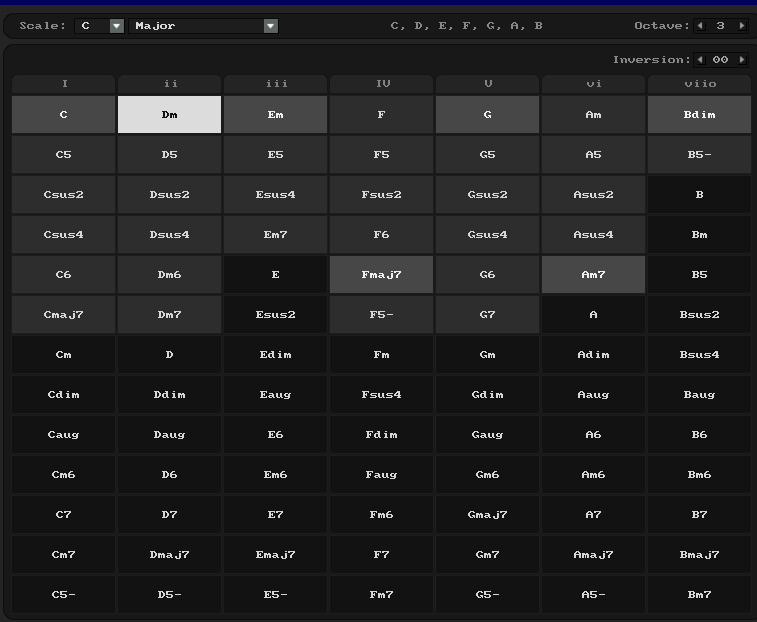
You can dock this window.
The track needs to receive midi from the virtual midi keyboard.
Click chords to hear them, shift click to place them. Chord length is determined by grid size.
Keyboard Shortcuts:
0stops playing note. Otherwise the chord keeps playing indefinitely.1-7plays basic triads in key- shift-number inserts
Controls:
- Top right: octave and inversion.
- Inversion: move cursor to start of chord. Change inversion number. Then shift-click to re-insert.
- Change chords:
- Select chords, and shift click.
- Marquee select multiple adjacent chords to replace all.
Custom Rhythm:
- Insert notes with the desired rhythm. Then select them and shift-click to replace with the chord with same position and duration.
Playing Live:
- Record, and shift-click chords as you go on.
- You can do this with the numbers as well.
FX Throws Using Lanes
FX Throws Using Lanes youtube video
Review
- FX Throws via automation.
- FX Throws by duplicating clips to 100% wet delay track.
Using Lanes
- Duplicate vocal track as before.
- Comp into new empty lane.
- Using comping to select what gets delayed.
Creating a Channel String
Creating a Channel Strip youtube video
- Create an FX chain. E.g. a gate, low eq, compressor, hi eq.
- We can only see one at a time unless we float the plugins.
- We can float and move windows where we want.
- Then we can save as an FX chain.
- But the position of floating windows isn't saved as the FX Chain.
- We can (prefs)
Plugins→Auto float newly created - Actions: Open/Close FX
- We can combine these by selecting all these, and then New Custom Action.
- Reaper doesn't remember positions in FX chains.
- We can (prefs)